GitHub Copilot 101 for Engineers and Testers
Introduction to GitHub Copilot
GitHub Copilot is an AI coding assistant that helps engineers write, review and maintain software faster. Today, Copilot includes both:
- Assistive features (for example, inline completions and chat in IDEs and GitHub).
- Agentic features (for example, autonomous code changes, pull request support, and code review).
Copilot is highly capable, but it is not a replacement for engineering judgement. Always review generated output for correctness, security, and alignment with CRUK standards.
If you use Copilot Free or any personal Copilot setup, ensure your configuration actively protects CRUK intellectual property and sensitive data.
Copilot on GitHub.com
GitHub.com now offers a broader Copilot experience than chat alone.
Copilot Chat on GitHub
- Access Copilot Chat from GitHub pages, including repository, pull request, and issue context.
- Ask questions such as: "What does this repository do?", "Explain this change", or "Why is this workflow failing?"
- Responses can be grounded in repository context and current page context.

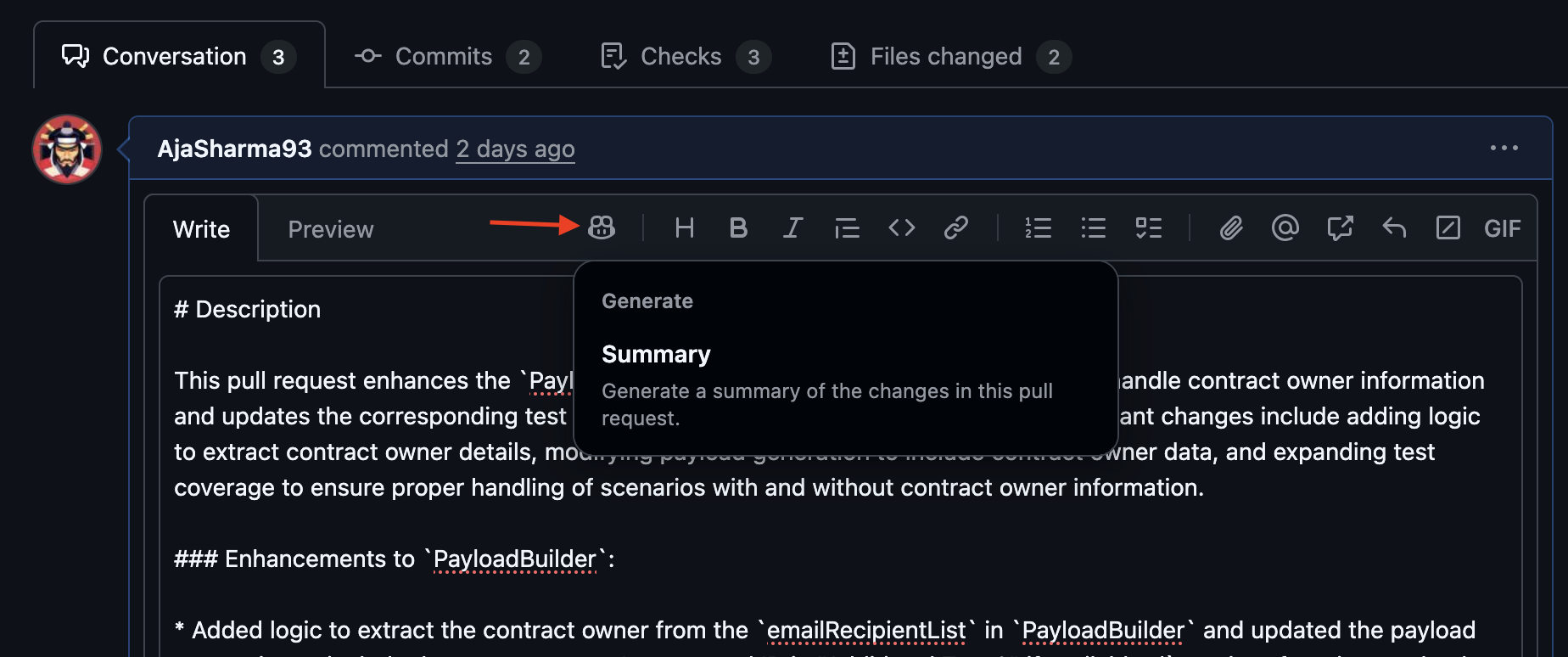
Pull request summaries
- Generate AI summaries for pull requests.
- Summaries help reviewers understand changed files, likely impact, and review focus areas.
Copilot code review
- Request Copilot as a reviewer on pull requests.
- Copilot leaves comments and can include suggested fixes.
- Reviews from Copilot are advisory and do not replace required human approvals.
- Automatic review can be configured at repository or organisation level where supported.
- Copilot PR reviews consume AI credits from the requesting user account, so you do not need automatic reviews on simple pull requests.
Copilot cloud agent
- Copilot can work on tasks more autonomously (for example, implement a change from an issue).
- You review the proposed diff and iterate before merging.
Requirements
- Sign in with your CRUK GitHub account.
- Check your Copilot settings to confirm access.
Copilot in Visual Studio Code (VS Code)
VS Code remains one of the most complete Copilot clients.
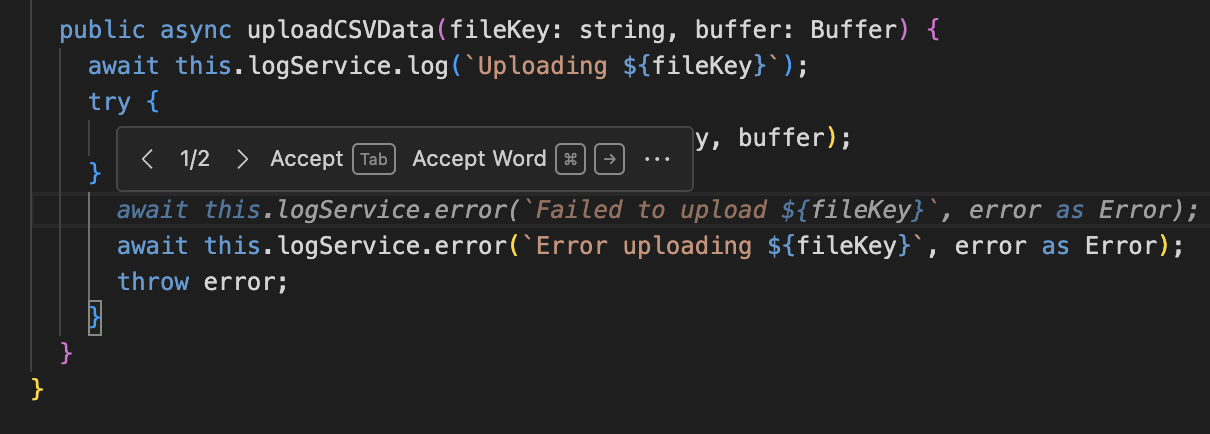
Inline and next-edit suggestions
- Copilot suggests code as you type.
- In supported flows, Copilot can also predict likely next edit locations and propose follow-up changes.
- Accept suggestions with
Tab, dismiss withEsc.
Copilot Chat and agent mode
- Use chat for code generation, explanation, refactoring, tests, and debugging.
- Select code and ask Copilot for contextual help.
- In agent mode, Copilot can propose multi-file changes and terminal commands with approval steps.
Useful shortcuts
| Command | Shortcut |
|---|---|
| Accept suggestion | Tab |
| Dismiss suggestion | Esc |
| Next/Previous suggestion | Alt/Option + ] / [ |
| Open suggestion panel | Ctrl + Enter / Cmd + Shift + A |
| Inline chat | Ctrl + I / Cmd + I or context menu |
Use cases for testers
- Generate test scaffolds and edge-case ideas.
- Ask Copilot to improve assertions and test readability.
- Convert exploratory notes into structured test cases.
Copilot CLI and the Copilot App
GitHub Copilot is now available beyond IDEs and the web UI.
Copilot CLI
- Use Copilot directly in terminal workflows for coding, debugging, and GitHub tasks.
- Run interactive sessions, or provide one-off prompts from the command line.
- Supports plan-first workflows for complex changes.
GitHub Copilot App
- Supports parallel agent sessions across repositories.
- Useful for larger, multi-step engineering tasks and automation workflows.
Copilot in GitHub Desktop
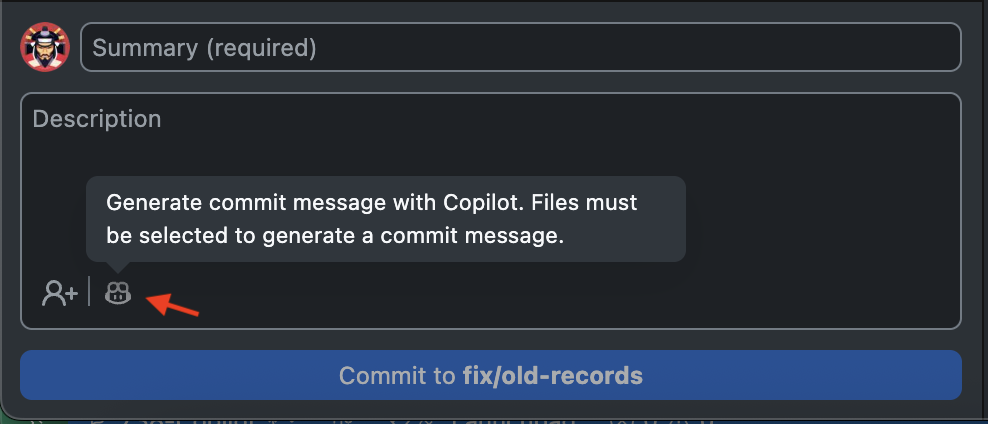
GitHub Desktop supports commit message generation.
Commit message suggestions
- Copilot generates a commit title and body from staged changes.
- Review and edit suggestions before committing.
Limitations
- Focused on commit message assistance (not full code generation).
- Suggestions may not follow CRUK commit conventions (for example, ticket IDs).
- You remain responsible for final wording and compliance.
Customisation features (MCP, Spaces, instructions, memory)
Copilot can be customised to improve output quality and relevance.
- Model Context Protocol (MCP) servers: connect Copilot to external tools and data sources.
- Copilot Spaces: organise and share reusable context for teams.
- Custom instructions and prompt files: encode team conventions and repository guidance.
- Copilot Memory (preview in some contexts): helps Copilot retain repository-specific patterns.
For CRUK teams, use these capabilities responsibly and in line with internal guidance.
Model usage guidance for token optimisation
Use the cheapest model family that can complete the task reliably, then escalate only when needed.
At CRUK, enabled model families are GPT, Claude, Gemini, and MAI-Code.
Practical model selection
- Lightweight models (for example, mini/flash variants): use for quick Q&A, boilerplate, simple refactors, and routine documentation edits.
- Balanced models: use for normal day-to-day coding, tests, and moderate debugging where you need stronger reasoning but still good efficiency.
- Powerful models: reserve for complex architecture decisions, multi-file agentic tasks, difficult debugging, or high-stakes reviews.
CRUK model groups (without version numbers)
- Lightweight: GPT mini/nano variants, Gemini Flash, MAI-Code Flash.
- Balanced: GPT versatile tier, Claude Haiku, Claude Sonnet, Gemini Flash versatile tier.
- Powerful: GPT Codex and powerful tiers, Claude Opus, Claude Fable, Gemini Pro.
Token-efficient workflow
- Start with lightweight or balanced models.
- Escalate to powerful models only if quality is insufficient after one or two iterations.
- De-escalate back to a cheaper model once the hard part is solved.
Using Auto model selection
Auto model selection lets Copilot choose a suitable model for your prompt based on task complexity.
- Use Auto as your default for general development work.
- Keep using Auto when task scope changes frequently (for example, switching between explanation, refactor, and test generation).
- Override Auto and pick a specific model only when you need predictable behaviour for a known task type.
- If token usage is rising, simplify the prompt scope first; then consider switching from Auto to a lower-cost model for routine follow-up tasks.
Prompting patterns that reduce token spend
- Keep prompts specific and scoped to one task.
- Share only relevant files or snippets, not full repositories.
- Ask for concise outputs first (summary, plan, or patch), then request detail only where required.
- Reuse existing context in the same thread instead of repeating background.
- For long tasks, break work into smaller steps and validate incrementally.
Access to features and licensing at CRUK
- CRUK uses GitHub Enterprise and centrally managed Copilot access.
- In addition to enabled models, other model families may appear in GitHub documentation but are not enabled for our organisation.
- CRUK is actively experimenting with Copilot cloud agents and MCP servers, with a view to maturing these into a production-grade capability over time.
- For questions, feedback, or feature access requests, use #github-copilot on Slack.
- Use Copilot only for CRUK-approved work and follow CRUK security, licensing, and data handling policies.
Best practices
- Always review generated output for correctness and secure design.
- Treat Copilot reviews as advisory, not as a substitute for human code review.
- Use clear prompts and constraints (tech stack, style, test expectations).
- Break complex work into smaller tasks and iterate.
- Keep context clean with clear code, tests, and documentation.
- Do not include sensitive data in prompts or context unless explicitly approved by policy.
- Start with lower-risk changes when adopting new Copilot features.
Using Copilot responsibly helps CRUK improve delivery speed and developer experience without compromising quality or safety.